



The NT-CP1 thermal pad does not require any manual activation or dedicated run-in procedure. Regular use with varying CPU loads and temperatures is sufficient for the pad to reach its full thermal performance over several weeks or months. However, it is possible to speed up the activation phase through dedicated thermal cycling. This guide shows you how to set up automated thermal cycling in Windows 10/11 using free stress-testing software and a simple batch script.
What is considered a “thermal cycle”?
For effective activation, both sides of the NT-CP1 pad must remain above 60°C for at least 2 minutes and subsequently remain below 50°C for at least 2 minutes. As these interface temperatures cannot normally be monitored directly, we recommend load and cooling phases of at least 5 minutes each. During the first cycle, verify that the CPU package temperature rises above 85°C early enough in the load phase and falls below 45°C early enough in the cooling phase for each threshold to be maintained for at least 2 minutes. Increase cycle times if necessary.
Temperature monitoring
To make sure that your CPU reaches the recommended temperature levels under load and at idle, please use monitoring software such as HWiNFO, Fan Control or the tools supplied by your motherboard manufacturer.
How to download and set up Prime95
We will use the free stress-testing software Prime95 to put the CPU under load, which should cause temperatures above 85°C on most modern AMD Ryzen CPUs. Please download the latest version of Prime95 here, then unzip the archive to a location of your choice.
Next, start Prime95.exe. On first launch, select “Just Stress Testing”. Then select the “Smallest FFTs” setting and click “OK”.

Check whether the CPU temperature rises above 85°C. If it does not, you may temporarily reduce the cooler fan speed while continuously monitoring the temperature.
Stop and close Prime95, then verify that the CPU temperature falls below 45°C again.
Setting up and running the batch script
We have created a simple command-line batch script that starts and stops Prime95 using the settings selected previously. To create the batch script, open Notepad (or a new tab in Notepad) and paste the following script into it:
@echo off
setlocal
cd /d "%~dp0"
if not exist prime95.exe (echo prime95.exe not found in %~dp0 & pause & exit /b 1)

REM ===== CONFIG =====
set /a RUN_MIN=5, COOL_MIN=5, CYCLES=100
REM ==================
REM Note: select the torture config (e.g. Smallest FFTs) once in Prime95
REM beforehand - prime.txt remembers it and -t reuses it.

set /a RUN_SEC=RUN_MIN*60, COOL_SEC=COOL_MIN*60

for /l %%i in (1,1,%CYCLES%) do (
    echo === Cycle %%i/%CYCLES% : test %RUN_MIN% min ===
    start "" prime95.exe -t
    timeout /t %RUN_SEC% /nobreak >nul
    taskkill /f /im prime95.exe >nul 2>&1
    if %%i lss %CYCLES% (
        echo Cooling %COOL_MIN% min...
        timeout /t %COOL_SEC% /nobreak >nul
    )
)

echo All %CYCLES% cycles completed.
pause
Now save the script as a .bat file (in Notepad’s Save dialog, set “Save as type” to “All files” so that it is not saved as .bat.txt) in the same directory as your prime95.exe.

The load and cooling times are set to 5 minutes each in the example script. You can adjust them by changing the values for RUN_MIN and COOL_MIN.
The number of cycles is set to 100, but can be adjusted by changing the CYCLES setting.
Finally, double-click the .bat file to execute it and start cycling. Use your temperature-monitoring software to make sure that the CPU temperature exceeds 85°C under load and falls below 45°C at idle.

To stop the batch script, close its Command Prompt window and then close Prime95 if it remains open. The process can be restarted by double-clicking the file.
Notes and recommendations
Prime95 places a sustained, intensive load on the CPU, so other applications may run more slowly and the system may become less responsive. We therefore recommend running thermal cycling only while the system is otherwise idle. Before leaving the process unattended, observe at least one complete cycle and verify that the required temperature thresholds are reached. Stop the process if the system becomes unstable or the cooling system does not operate as expected. Also make sure that Windows is not configured to enter sleep or hibernation during the run.
Dedicated thermal cycling is entirely optional. The NT-CP1 pad will activate automatically during normal use; running the batch script simply helps to accelerate the process and achieve lower temperatures sooner.
With the default 5-minute load and 5-minute cooling periods, a run set to 100 cycles takes roughly 16 hours and 35 minutes, plus a small amount of start-up and shutdown overhead. This can significantly accelerate activation and should result in a measurable temperature drop. After 100 cycles, the performance may keep improving for several hundred to several thousand thermal cycles, but typically, most of the temperature improvement of the activation phase occurs within the first 100-300 cycles. Therefore, users who wish to fully complete activation through dedicated cycling may need to run the script multiple times, particularly if the system undergoes little thermal cycling during normal use.
Mentioned products
Explore the products featured in this article.

NT-CP1 AM5/4
Related FAQs
Related articles
Want to learn more? Explore related articles and resources.
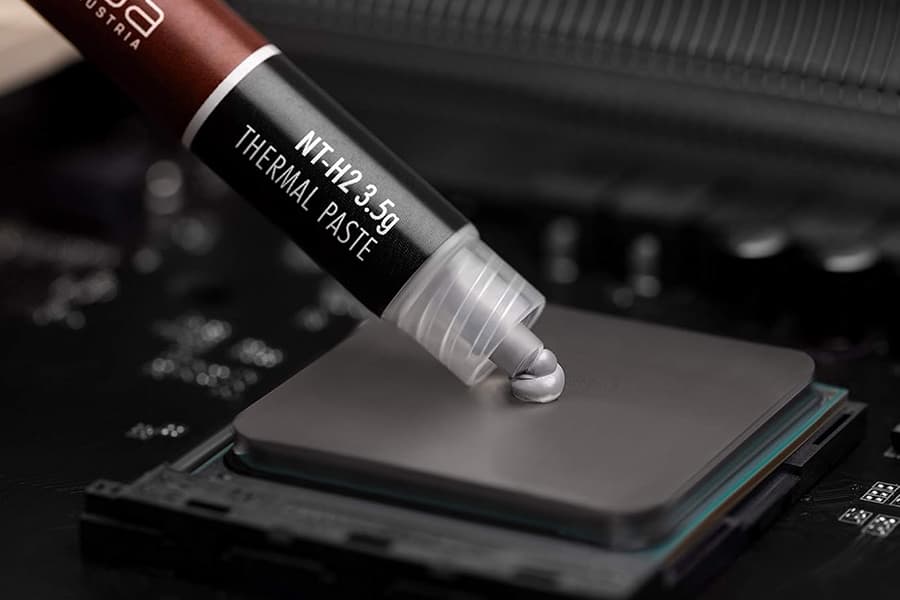
Performance comparison NT-H1 vs. NT-H2
The NT-H2 thermal paste further improves on the award-winning NT-H1. But how much of a difference in performance can you expect to see?

NT-CP1: Performance characteristics and technical background
The Carbice® NT-CP1 carbon nanotube thermal pad improves over thousands of thermal cycles instead of degrading like pastes, ideal for long-lasting, maintenance-free use.